![Full Color.png]](https://learn.tryswivl.com/hs-fs/hubfs/Full%20Color.png?height=50&name=Full%20Color.png)
Get API Credentials from Tenant
Reach out to your contact at Tenant to obtain your API credentials. These codes act like a password, allowing us to securely send and retrieve customer information from your FMS. Once you have the credentials, please send them to us so that we can connect our system with yours.
Add Tenant to swivlStudio
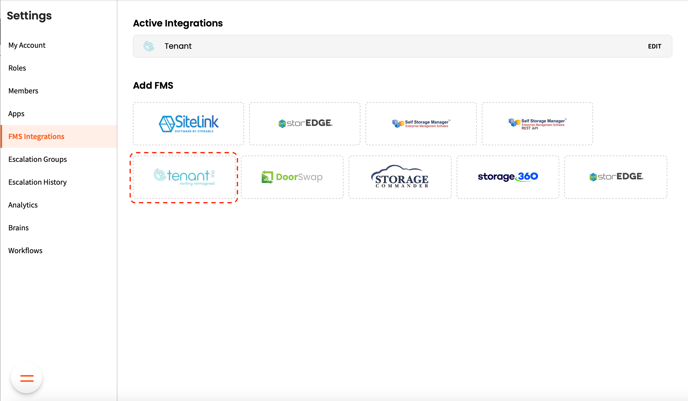
- To get started, navigate to Settings > FMS Integrations.
- Hover over Tenant and click +ADD TENANT
- A new row will be added beneath Active Integrations. Select EDIT on the far right
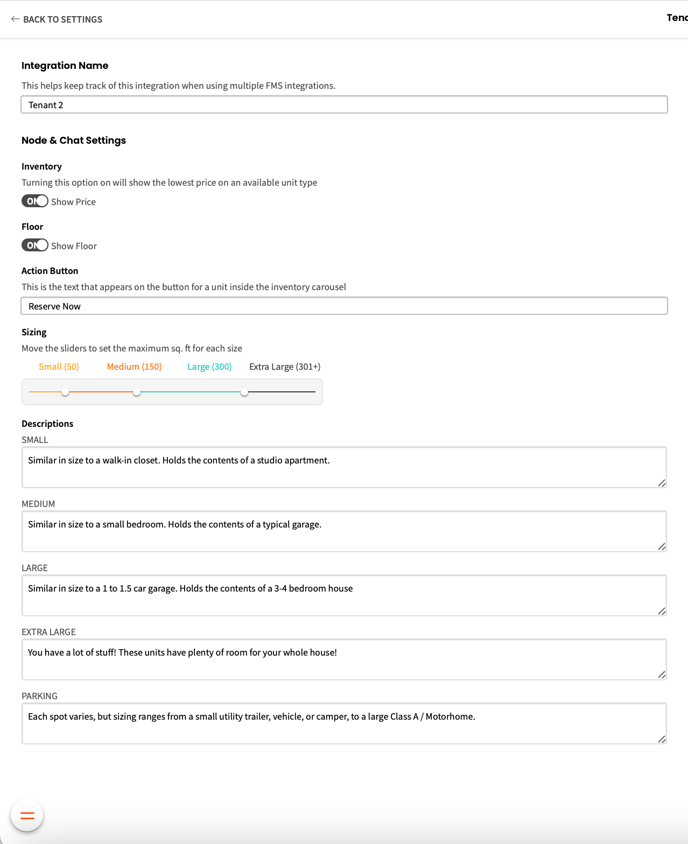
4. In the left panel you can rename the integration and adjust other chat settings, such as the size and descriptions of your small, medium, large, and extra large units
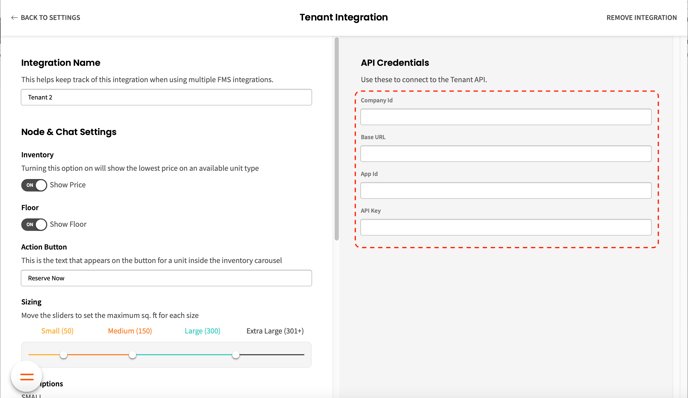
5. The right panel is where you’ll provide your API credentials, with options to make this your default integration and to remove this integration above.
Connecting a New Location
To connect a new property with swivl, you must first subscribe to the property using the Integration Portal in Hummingbird. Once you’ve done this, you’ll receive an email containing the Property ID, which is required to complete the setup in swivl.
-jpeg.png?width=1113&height=499&name=image%20(3)-jpeg.png)
Add your Property ID
Once you receive the Property ID via email, please follow these steps to add the information to swivl.
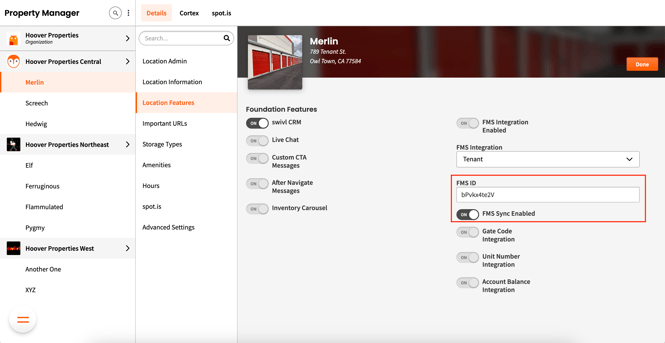
- Navigate to the Property Manager
- Select the correct Location from the list
- Under the Details tab, go to Location Features
- Add the Property ID under the FMS ID field
- Make sure the FMS Sync Enabled is turned on
Review Leads
Our leads will populate into the Leads section of your Tenant account. To get there, choose Leads from the left sidebar:
Notice that the Lead Source field is set to “Swivl Application” for all leads that originated from your bot. When a lead is converted into a tenant, their Lead Source will remain the same. By pulling reports of tenants whose Lead Source is set to "Swivl Application, you can track your bot conversions more effectively.
Sort the Leads table to your liking by clicking on the column names (sorted from newest to oldest in the screenshot above).
Here is what one of our leads looks like:
ℹ️ Users are able to provide their name, phone, email, unit, and size to your bot. Everything else gets set automatically. For example, Move In Date is set to the current date.