![Full Color.png]](https://learn.tryswivl.com/hs-fs/hubfs/Full%20Color.png?height=50&name=Full%20Color.png)
💬 Conversations Page 💬
Overview
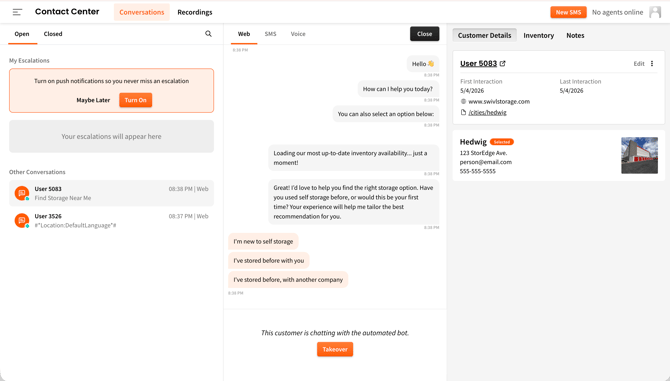
Conversations consists of three main panels. By default, on the left you’ll see all of the open conversations with escalations that are assigned to you at the top. The middle panel is where you can chat with customers, and the right panel allows you to see any saved variables or CRM data that has been synced with swivl.
Agent Profile
Before getting started, you’ll need to add an avatar image and display name to your profile. For privacy, we recommend using just the first letter of your last name. Also, if you don’t feel comfortable uploading a picture of your face, ask your manager if it’s okay to use your company logo or a stock photo instead. Note that your agent profile will only need to be setup once.
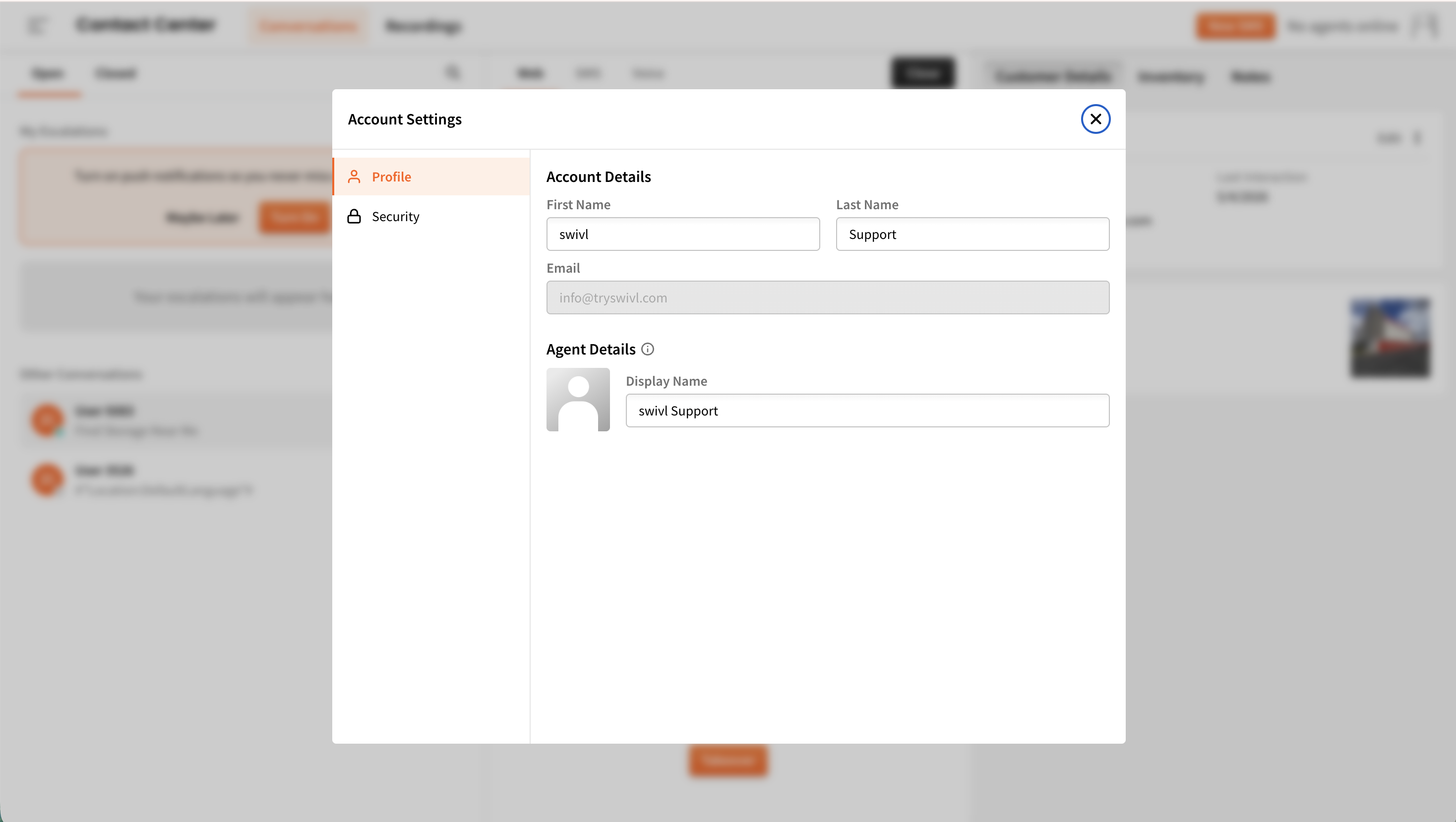
Whenever you enter a conversation, the user will be notified with your avatar and display name:
Availability
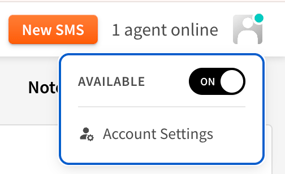
In the top left corner, make sure your availability is turned ON. Only flip this toggle to OFF if you’re unable to take chats, like if you’re on your lunch break or logged out for the day.
Notifications
When an escalation is assigned to you you’ll be notified in 3 ways:
- A hooting sound, which will persist as long as the escalation is assigned to you. If you aren’t hearing this, check out the Troubleshooting section.
- A flashing browser, which will also persist as long as the escalation is assigned to you.
💡 Pro tip: if you’re not on the Conversations page, an orange pop-up will appear in the bottom right-hand corner of your screen alerting you that someone needs assistance. Click this to be taken to the escalation.
My Escalations
Accepting an Escalation
When an escalation is assigned to you, you’re given the options to accept or ignore it. You’ll want to accept as soon as possible in order to provide the best customer experience.
Once you accept an escalation, the user is informed that they’re chatting with you and your greeting is pre-populated.
Edit your greeting if necessary then press SEND to start off the conversation. From here, you can reply with free text, send a quick reply, or utilize agent assist.
Send a Quick Reply
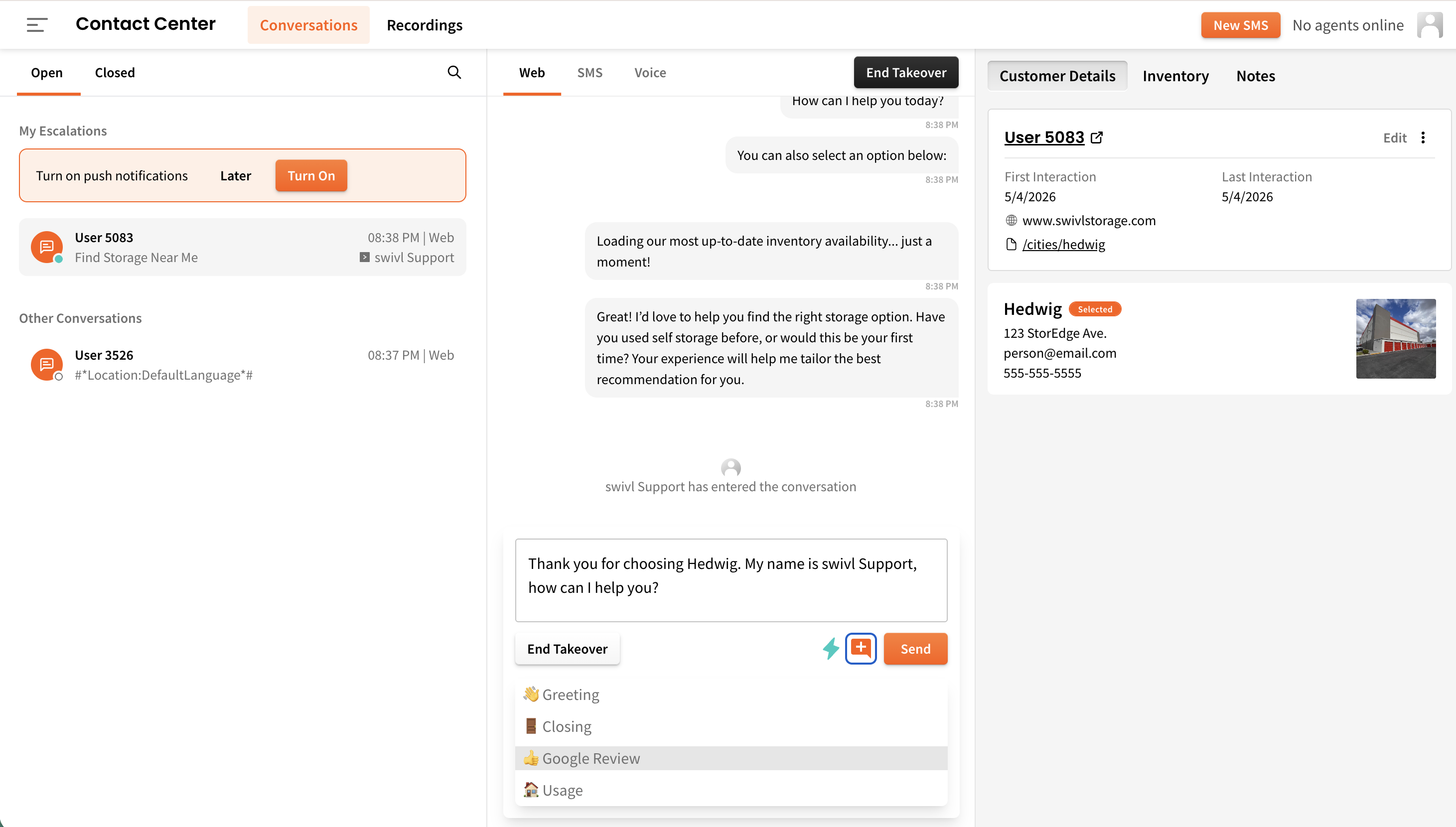
Open the Quick Replies drawer by clicking the chat bubble beneath the text field:  You can keep the drawer open or select the chat bubble again to close it.
When you select one of the Quick Replies, the message automatically populates into the text field. You can edit the message if needed or hit send to quickly reply with canned messages.
Utilize Agent Assist
Innovator Tier
ℹ️ Turn on Agent Assist by clicking the lightning bolt beneath the text field:
When a customer sends a message, a reply will automatically pre-fill into the text field. Hit TAB on your keyboard to take the suggestion (you always have the opportunity to edit before sending it) or start typing to reject it. Make sure to click on the text field before hitting TAB.
End the Conversation
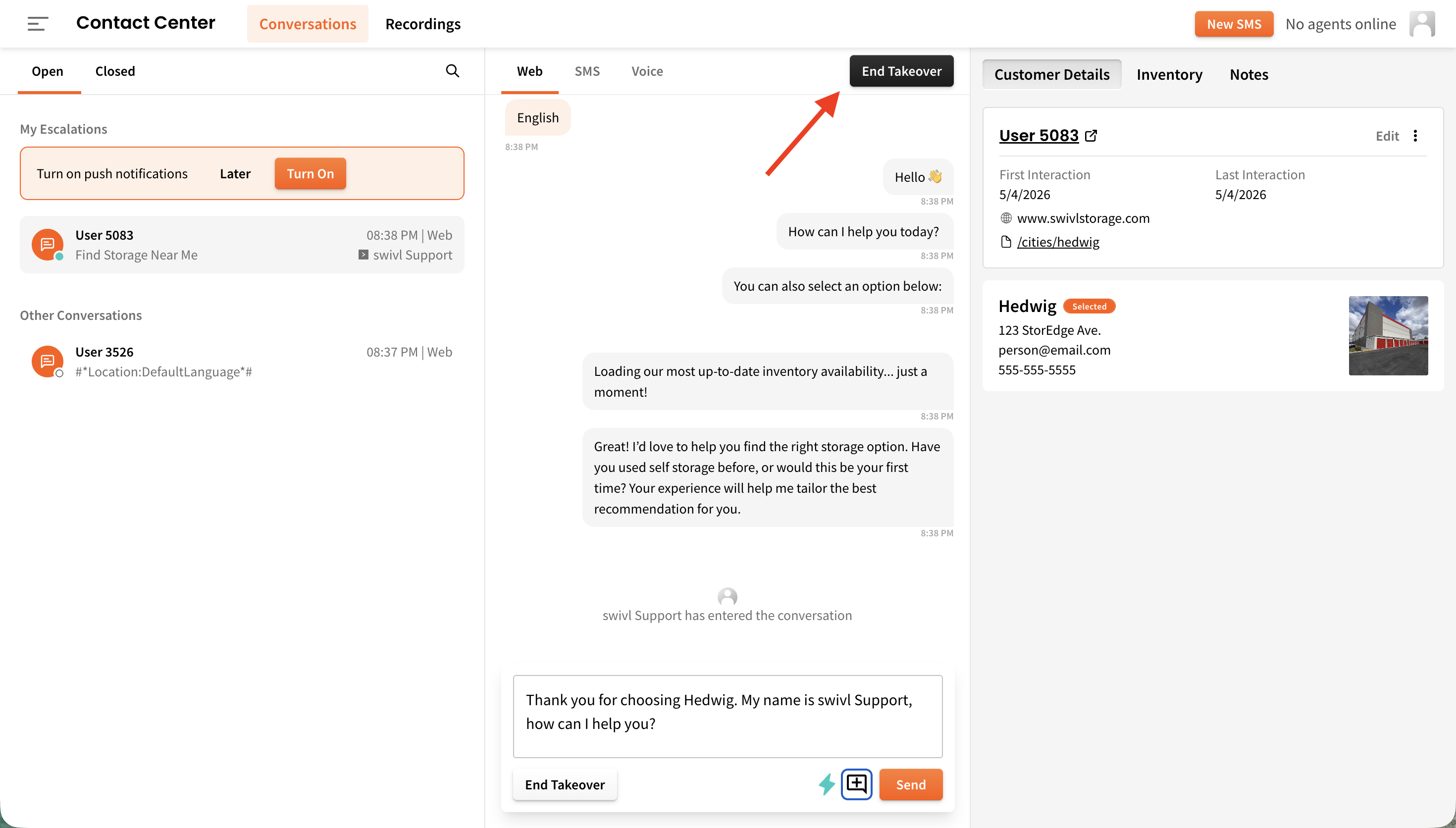
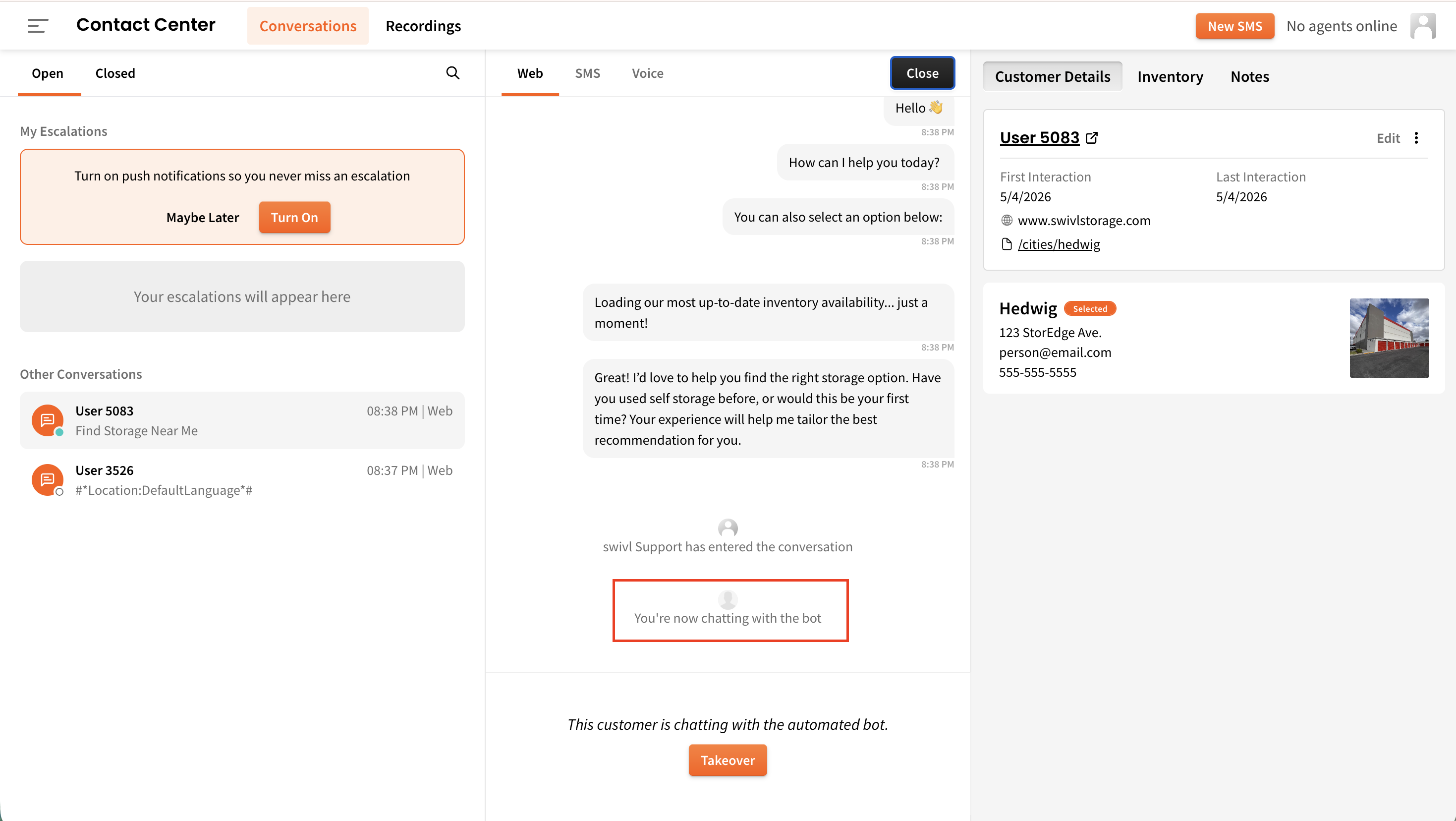
Once you’re finished assisting the user, select End Takeover to push the user back to the bot. You can continue to view the conversation, but the bot will be the one to provide the first-line of defense. If you forget to end the conversation, we will automatically end it after 4 minutes of inactivity from both sides.
Ignoring an Escalation
If for some reason you need to deny a chat and press ignore, the conversation will be assigned to the next agent. You’ll want to avoid doing this though as it will be reflected as an ignored chat in your agent stats. Also, if you’re the last agent in the chain, the bot will have to inform the customer that no one is available to chat with them at this time. We want to avoid this as best we can during business hours.
Missing an Escalation
If you go so many seconds without accepting or ignoring a chat, it will timeout. This time limit is set by your manager and usually ranges from 30 to 60 seconds. If a chat times out on you, you’ll be informed that you missed it via a red bar above your escalations and it will be reflected as a missed chat in your agent stats. It will then be assigned to the next agent (Liam in the screenshot below).
If the last agent in the chain ignores or misses the escalation, the notification will update to “🤷♀️ No Agent Available” and the bot will inform the customer that no one is available to chat with them at this time.
If you’d like to assist the customer, you can do so by clicking on the red bar and then taking over. If you don’t plan on assisting the customer, select DISMISS to move them down to Other Conversations.
If you aren’t receiving any escalations but believe that you should be, check out the Troubleshooting section.
Takeovers
You can peek into the conversations users are having with the bot or other agents at any time. If you want to takeover a conversation, simply select one of the Takeover buttons in the middle column, and you’ll be chatting with the user.
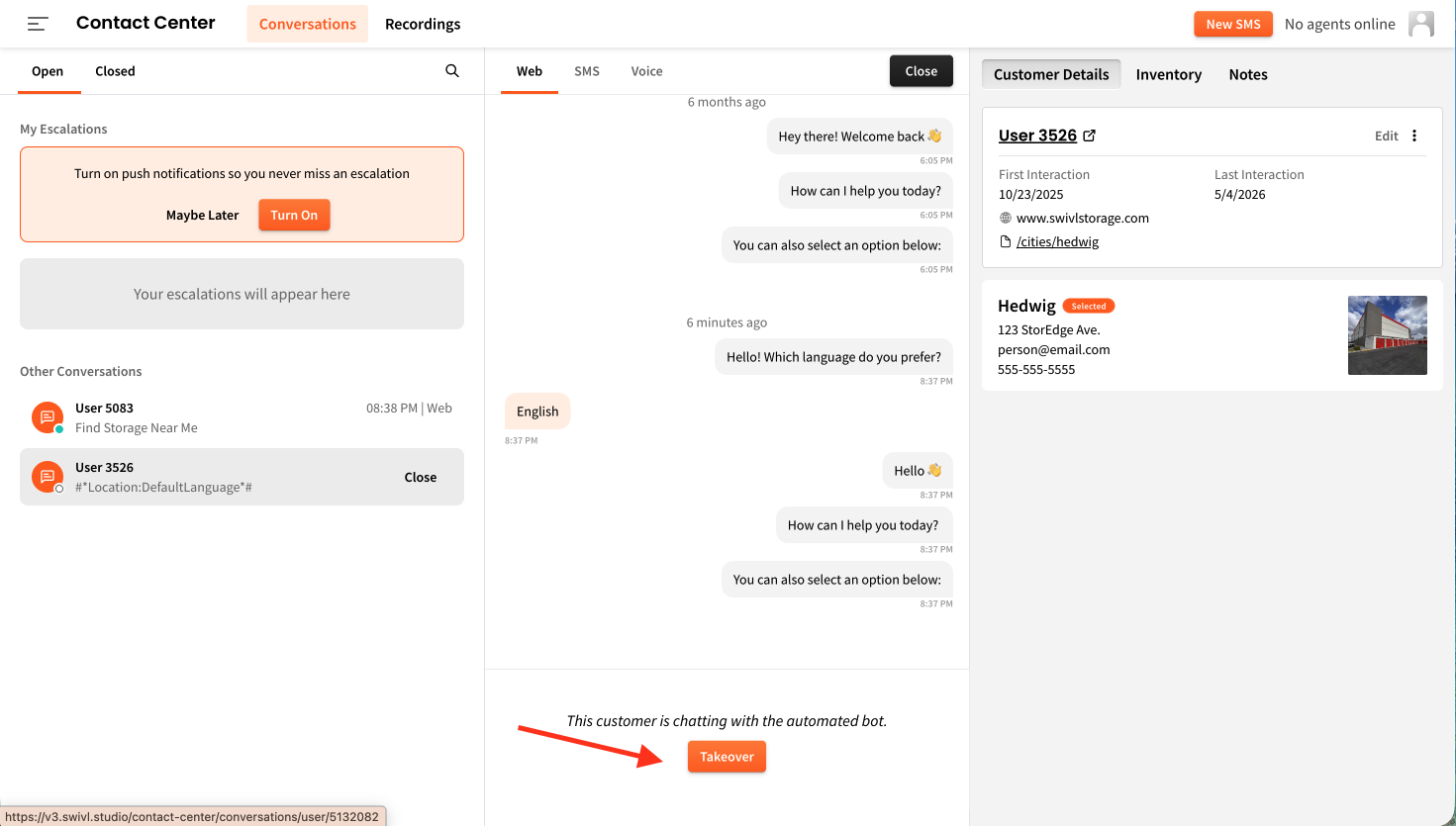
Don’t forget to end the conversation when you’re finished assisting the user.
When a user is actively on your website with the chat window open, you’ll see a teal dot next to their name in the left panel as well as a status indicator in the right panel. Since these users are actively engaged, it’s likely they’ll see your message if you takeover the conversation.
Open | Closed
Whenever a new conversation comes in, it will appear in the OPEN section. Click on a user and select CLOSE to move their conversation to the CLOSED section.
This is helpful when you want to mark conversations as resolved. You may want to CLOSE a conversation once you’ve finished helping a customer and they don’t have any more questions. You may also choose to leave conversations you want to review later in the OPEN state, and then move them to CLOSED once you’ve reviewed them.
If you accidentally close a conversation - don’t worry. If the user chats in again their conversation will automatically be moved from CLOSED to OPEN.
Also, you can always OPEN conversations that have been CLOSED.
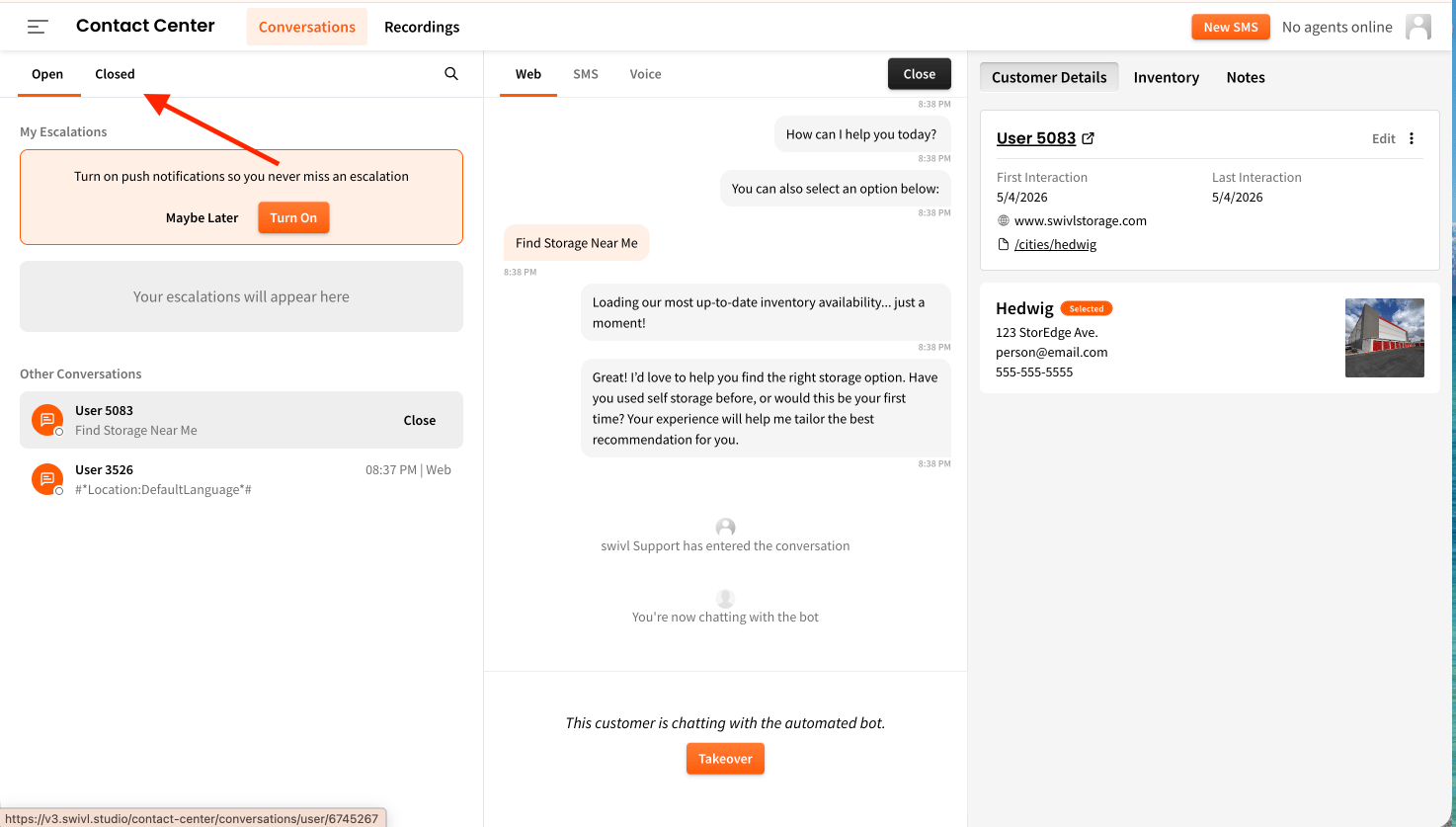
After 24 hours, all conversations will automatically be closed.
User Variables
The rightmost panel offers information about the user you’ve selected. If we have information on the user, it will be displayed here. You can edit any of the variables by entering text and then selecting Save.
Click Edit > Show More