![Full Color.png]](https://learn.tryswivl.com/hs-fs/hubfs/Full%20Color.png?height=50&name=Full%20Color.png)
Within Settings, navigate to the Escalation Groups section to configure when agents are available to handle live chats and escalations.
Configuring Agent Availability
Here’s how you can manage agent availability settings:
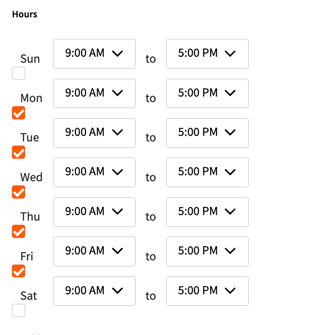
Hours
Define the specific hours during which agents will be available to assist users. This ensures that live chats are only routed to agents when they are actively online and ready to respond.
Outside Business Hours
- The bot will inform the user that no one is available to assist at the moment.
- It will then collect the user’s details (name, email address, phone number, and local store) and send this information via email to the designated lead email address(es).
ℹ️ Need to update lead email addresses? Check out FMS: Leads in My Storage for guidance.
Ignore Availability
Default Setting: OFF
Keeping this setting OFF ensures that escalations are not routed to unavailable agents.
When ON: Escalations can be assigned to agents regardless of their availability status.
Time before skipping agent (seconds)
Configure the time (in seconds) an escalation remains assigned to an agent before moving to the next available agent. A timeout is logged as a missed chat in agent performance stats.
Example: If the timeout is set to 30 seconds and the bot tries 3 agents, the user could wait up to 90 seconds (30 seconds x 3 agents) before being routed elsewhere.
Tries before going to the “no agent available” quest
This is how many agents the bot will try before informing the user that there isn’t anyone available to assist them at this time.
Fallback Settings
If no agents are available after the configured number of attempts, users are directed to the “No Agent Available” quest. This setting ensures a smooth fallback process and minimizes user frustration.