![Full Color.png]](https://learn.tryswivl.com/hs-fs/hubfs/Full%20Color.png?height=50&name=Full%20Color.png)
Why Add a New Brand in swivl?
When you onboard with swivl, our team sets up one default brand for your account - including your logo, name, and primary colors. But as your business grows or evolves, you may want to add new brands to better reflect your structure or customer experience.
Here are a few common reasons to create a new brand in swivl:
-
Multiple Locations or Brands: Different properties, teams, or departments need their own unique branding.
-
Franchise or Business Units: You manage several businesses under one organization and want to keep each identity distinct.
-
Rebranding or Brand Testing: You're updating your look or trying out a new logo, name, or color palette.
-
Promotions or Campaigns: You’re launching a seasonal promotion or special campaign that needs its own visual identity.
No matter the reason, swivl makes it easy to manage and customize your brands - all in one place.
Here's how to get started:
-
Log into your swivl Dashboard.
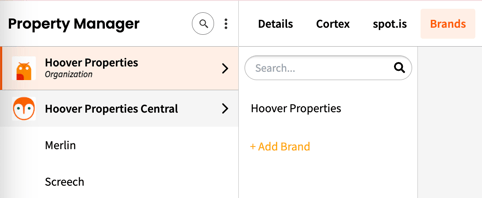
- Click the menu icon in the bottom-left corner, then select Property Manager.
-
From the Organization select Brands.
- Click + Add Brand to create a new brand.
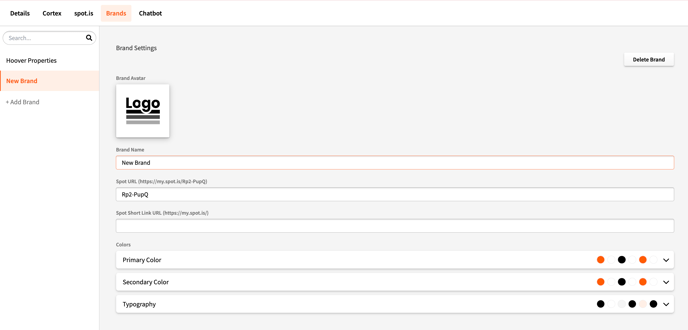
A new Brand entry will appear. From here, you can:
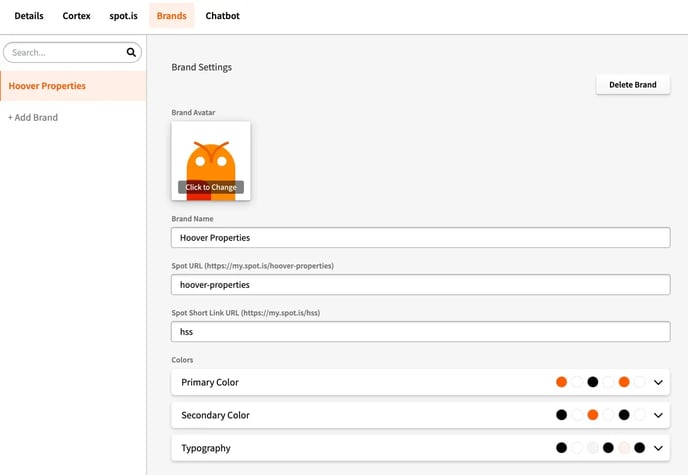
- Upload your logo: Hover over the logo icon and click “Click to Change.” Upload a JPG, PNG, or SVG file (recommended size: 300x300px).
- Enter your Brand Name: This is how your brand will be displayed across the platform.
- Set your spot URL: This creates a custom URL users are directed to when they scan your QR code or click your short link. Example:
https://my.spot.is/hoover-properties - Set your Short Link: A short, branded version of your spot URL - typically an abbreviation or nickname.
- Choose your Primary Brand Color: This is the main color used across your portal. Click the color circle to pick from a palette or enter your hex code (e.g.,
#FF5C02). - Add a Secondary/Accent Color (optional): This color is used for highlights and buttons.
💡 Tip: Use your official brand colors and logo to keep your experience consistent with your other marketing tools.
What Happens After You Create a Brand?
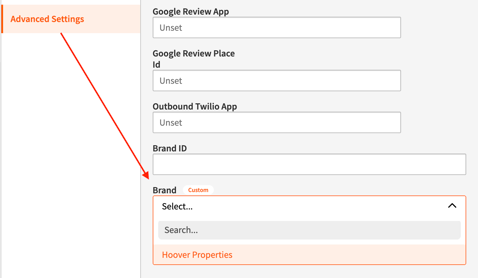
Once your new brand is set up, go to the Property Manager tab to assign it to a Group or Location to apply its look and feel across the entire experience.
The brand is used for:
-
spot.is: The colors you set will update the appearance of any spot.is link generated under that brand.
-
Chatbot Interface: Your brand colors are used to style the chatbot, ensuring a consistent visual identity when customers engage with your automated assistant.
To see your brand in action:
-
Open the QR code for the brand to see the colors applied.
- Visit your website and open the chatbot to preview the new colors.
This helps ensure every customer touchpoint - from scan to chat - feels polished, cohesive, and on-brand.