![Full Color.png]](https://learn.tryswivl.com/hs-fs/hubfs/Full%20Color.png?height=50&name=Full%20Color.png)
How to Use swivl Reports
See exactly how swivl is performing across your locations. Track revenue from AI-assisted rentals, monitor what tenants are asking about, and identify what needs attention - all in one place.
Getting to Reports
1. Click the hamburger menu (three lines) in the bottom left corner
2. Select Property Manager
3. Click the Reports tab at the top
4. Navigate to whichever report you'd like to view
Choosing What to View
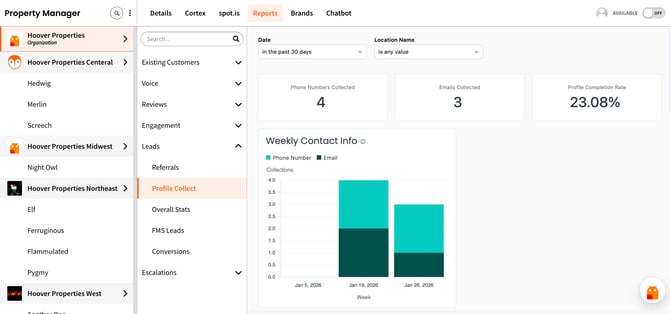
The Reports section has three panels:
Left panel - Your locations
Select your organization at the top to see data for all locations. Or click a group or specific location to filter everything to just those facilities.
Middle panel - Dashboard categories
Browse by category: Existing Customers, Voice, Reviews, Engagement, Leads, Escalations, and more. Click a category to expand it, then select a specific dashboard.
Right panel - Your data
Charts, tables, and metrics update based on your selections.
What Each Dashboard Tells You
Here's a quick guide to what you'll find in each dashboard - and the questions you can answer.
Leads
Track how swivl generates and converts leads into rentals.
- How much revenue has swivl generated?
- Which locations are converting the most leads?
- What unit sizes are renters selecting?
- How long does it take from first interaction to move in?
- Are leads flowing correctly to our FMS?
Existing Customers
Monitor self-service features and automated outreach for current tenants.
- How many tenants looked up their gate code this week?
- Are our collections messages getting sent?
- Which sequences are running?
- What's our SMS delivery success rate?
Voice
Analyze AI phone call performance for sales and support.
- How many calls did the AI handle without escalating?
- What are callers asking about most?
- Which callers need human follow-up?
- How many rental links did the bot send?
Reviews
Track customer satisfaction and reputation across channels.
- What's our NPS score this month?
- How many Google reviews did we get?
- Are in-chat Promoters leaving Google reviews when asked?
- How does satisfaction differ between move in and move out?
Engagement
See how users interact with swivl and what they're asking about.
- What questions are tenants asking most?
- Is swivl correctly identifying tenants vs prospects?
- How much traffic are our QR codes getting?
Escalations
Understand when conversations get handed to humans and what happens next.
- How many escalations happened this week?
- Are we missing escalations outside business hours?
- Which agents are handling the most volume?
- What's our resolution rate?
Filtering Your Data
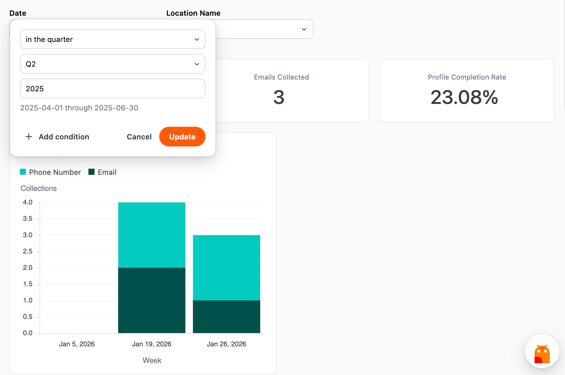
Most dashboards have filter dropdowns at the top - typically Date and Location Name.
Date - Choose a preset like "in the past 30 days" or set a custom range like "in Q2 of 2025"
Location Name - Filter to specific locations even if you selected your whole organization in the left panel.
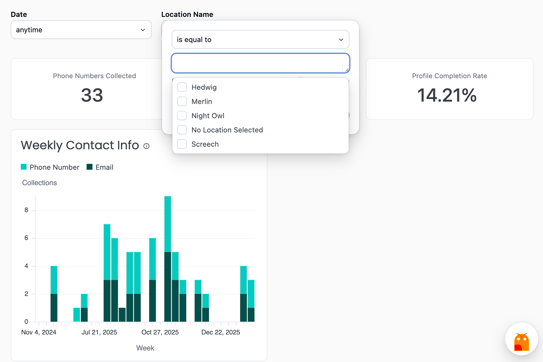
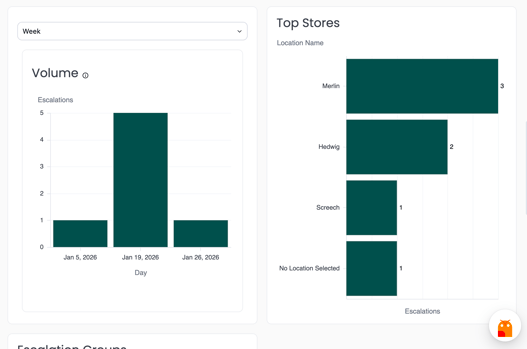
Chart-specific filters - Some charts have their own dropdown (like "Week" or "Day") directly above them. These only affect that one chart, not the whole dashboard.
Drilling Into the Raw Data
Every number you see can be explored further. Want to know who those 11 move ins were? Click the number to drill in.
How to drill:
1. Click any metric, bar, or chart segment
2. Select Drill (or "Drill into [metric name]")
3. A panel opens showing the individual records behind that number
In the drill view, you can:
- Sort columns - Click any column header
- Expand long text - Click the truncated text, then select Expand to read the full content
- Download the data - Click Download in the top right. Choose CSV, Excel, or JSON

Jumping to Conversations and Details
From any drill view, you can go directly to related records in swivl:
View in Conversations
When you see a User Name in the drill results, click it. Select "View in Conversations" to open the full chat transcript. See exactly what was said.
View in Property Manager
When you see a Location Name, click it. Select "View in Property Manager" to jump to that location's Details page - where you can adjust chatbot content, settings, and more.

Meet Hoover, Your Dashboard Assistant
Your customers ask swivl questions. Now you can too. Hoover is your dashboard assistant. Ask questions in plain English and get instant answers from your data.
How to open Hoover:
Click him in the bottom right corner of any Reports page.
What Hoover can do:
- Answer questions about any chart on your current dashboard
- Summarize trends and highlight insights
- Help you explore your data without clicking through menus
Example questions to try:
- "What's my total revenue this month?"
- "Which location has the most escalations?"
- "Summarize the outcomes for me"
- "What sizes are renters selecting most?"
Hoover shows cards for each chart on your dashboard - click one to start asking about it, or just type your question.

Have an idea?
We're always improving. If Hoover can't answer something, tell us. We'll teach him - and if it's a question you'll ask often, we might add it as a permanent chart on your dashboard. Email support@tryswivl.com with all of your ideas.
More Options on Every Chart
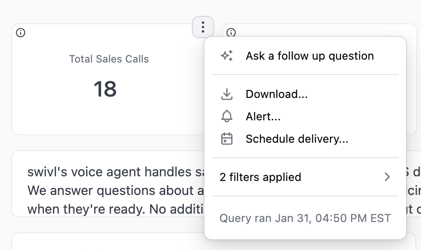
Click the three-dot menu on any chart tile to see additional options:
Ask a follow up question - Opens Hoover focused on that specific chart
Download - Export the chart's summary data (not the drilled-down details - for that, drill first, then download from the drill view)
Alert - Get notified when something important happens (see below)
Schedule delivery - Get this chart emailed to you automatically (see below)
Set Up Alerts
Want to know when something important happens - without checking the dashboard yourself? Set up an alert.
How to create an alert:
1. Click the three-dot menu on any chart
2. Select "Alert"
3. Choose your condition (see options below)
4. Choose how often to check: daily, weekly, or custom
5. Enter your email address
6. Click Save
Condition options:
- Results changed - Alert when the data is different from the last time it was checked. Example: "Alert me when a new conversion appears."
- Results are missing - Alert when data stops showing up. Good for catching issues early.
Real-world example:
You want to know immediately if no escalations were handled in a day. Set up a threshold alert: "Accepted escalation results are missing" - checked daily. You'll get an email only on days when the condition is met.

Schedule Recurring Deliveries
Get a chart or dashboard delivered to your inbox automatically.
How to schedule a delivery:
1. Click the three-dot menu on any chart
2. Select "Schedule delivery"
3. Choose how often: Daily, Weekly, or set a custom schedule
4. Pick the day and time (and timezone if needed)
5. Enter the email address - yours or your team's
6. Click Save
What you can customize:
- Expand tables to show up to 1,000 rows
- Hide the filter values from the email
- For PDFs: choose page orientation and size
Real-world example:
You want your team to start each Monday with last week's conversion numbers. Schedule the Leads > Conversions dashboard to deliver every Monday at 8am. It arrives in everyone's inbox - ready for your weekly meeting.

Reports in Action
Here are three ways operators use Reports every day.
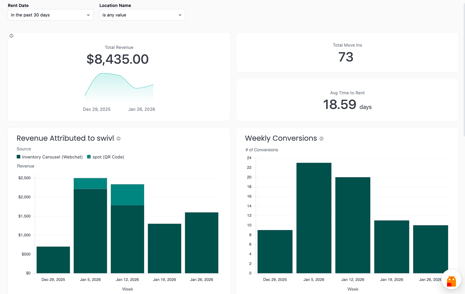
For HQ and Ops Leads: Verify swivl is Driving Revenue
Need to show leadership the ROI from swivl? Here's how to find your AI-attributed revenue.
Steps:
1. Go to Leads > Conversions
2. Look at the tiles at the top: Total Revenue, Total Move Ins, and Avg Time to Rent
3. Click Total Revenue to drill in
4. See each move in: who rented, which location, the unit's rate, and when
Bonus: Click a User Name to read the actual conversation that led to the rental.
For Store Managers: Identify What's Driving Tenant Questions
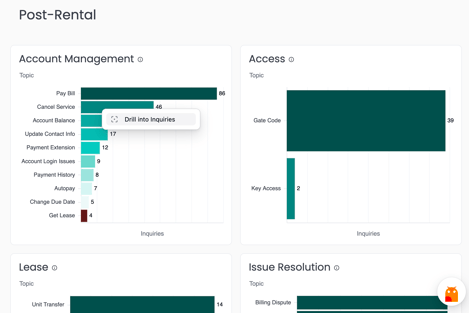
Want to know what's on your tenants' minds? See which topics are spiking and read the actual conversations.
Example: 46 people asked about canceling. What's going on?
Steps:
1. Go to Engagement > Property Manager
2. Find the Account Management chart
3. Click the "Cancel Service" bar
4. Select "Drill into Inquiries"
5. In the drill view, click any User Name
6. Select "View in Conversations" to read the full transcript
Now you know exactly what tenants are saying - and can decide if your chatbot responses need adjusting, or if there's an operational issue to address.
For Call Center Teams: Never Miss a Warm Lead
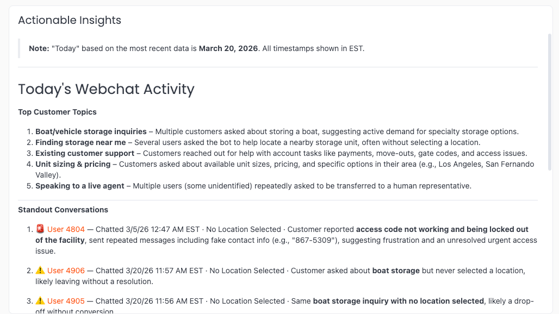
swivl’s Actionable Insights highlight conversations that may need your attention - whether it’s a frustrated tenant, someone confused about next steps, or a potential lead that didn’t convert. It’s a simple way to stay on top of issues and opportunities without digging through individual chats. You can also have these insights delivered to your inbox daily, so nothing slips through the cracks.
Steps:
1. Within Reports, go to Engagement > Interactions
2. Find the "Actionable Insights" tile - it shows who was chatting, when they interacted, and what they needed, with clickable link to the conversation
3. Click the three-dot menu on that tile
4. Select "Schedule delivery"
5. Set it to deliver daily to your team's email
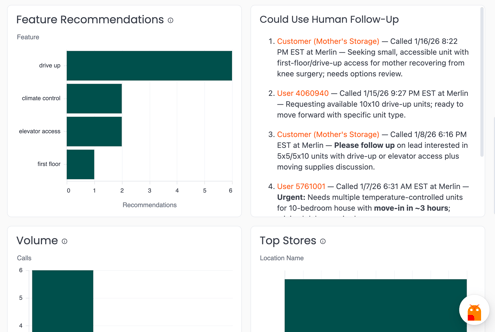
Additionally, for Voice/Disruptor users, your voice AI takes this a step further by automatically identifying callers who may need human follow-up and summarizing exactly why. You can receive this as a daily report as well, giving your team a clear, prioritized list to act on each morning.
Steps:
1. Within Reports, go to Voice > Sales Agent
2. Find the "Could Use Human Follow-Up" tile - it shows callers, when they called, and what they needed, with clickable links to the conversation
3. Click the three-dot menu on that tile
4. Select "Schedule delivery"
5. Set it to deliver daily to your team's email
Now your team starts each day with a ready-made callback list.
Quick Tips
Filters apply to the whole dashboard - When you change the Date or Location filter at the top, every chart updates. Exception: if a filter dropdown sits directly above a single chart (like "Week" on a volume chart), that filter only affects that chart.
Drill, then download - If you want raw data (every individual record), drill into the metric first, then download from the drill view. The Download option on a chart gives you summary-level data.
Use Hoover for quick answers - Instead of hunting through menus, just ask: "How many gate code lookups last week?" Hoover will show you.
Expand truncated text - See "..." in a cell? Click it and select Expand to read the full content without downloading.
FAQs
How often is the data updated?
Dashboards refresh nightly.
Can I see all locations at once?
Yes. Select your organization in the left panel to view data across all locations. Use filters to narrow down.
Why does a chart show no data?
The feature may not be enabled for your locations, or there's no activity in your selected date range. Try expanding the date filter.
How do I request a new report?
Email support@tryswivl.com with what you'd like to see. We're adding new dashboards regularly.
Need Help?
- Email: support@tryswivl.com
- We're happy to walk you through any dashboard
- Have feedback? We'd love to hear it - let us know what questions or summaries would help you most