![Full Color.png]](https://learn.tryswivl.com/hs-fs/hubfs/Full%20Color.png?height=50&name=Full%20Color.png)
What Ticketing Does
A lot of conversations end with something a person still needs to take care of. Before Ticketing, an after-hours or overflow conversation could end with nothing to ensure the next step actually happened. Ticketing closes that gap: any request that needs a human touch becomes a tracked, assigned, and auditable ticket, whether or not your team was available when it came in.
How Tickets Get Created
From a bot conversation
swivl opens a ticket automatically whenever a phone, chat, or SMS conversation runs into something it can't handle on its own. Common examples:
-
A payment plan, late fee waiver, or rent extension request
-
A damage or theft report
-
A move-out
-
Scheduling a walkthrough
-
Price-matching a competitor
⚠️ Important: A reported emergency, like someone trapped at a gate, always creates a ticket immediately, no exceptions. When a call is transferred to a person, a ticket is often (though not always) created too, so there's a written record of the conversation.
Bot-created tickets are tagged automatically and may arrive with a suggested task checklist drafted from the conversation. You can edit, check off, or remove any of those tasks just like ones you add yourself.
.png?width=500&height=366&name=image%20(26).png)
Manually, by your team
Anything that comes in outside of a bot conversation- a walk-in, a call your team handled directly- can be turned into a ticket by hand:
-
From the Ticketing inbox, using New Ticket
-1.png?width=500&height=248&name=image%20(27)-1.png)
-
From inside a live conversation, which pre-fills the title, description, and customer for you
.png?width=500&height=261&name=image%20(28).png)
.png?width=500&height=437&name=image%20(29).png)
Title is the only required field. Location, Assignee, Group, Priority, Tags, and a task checklist are all optional.
💡 Tip: Picking an Assignee sends the ticket straight to that person. Leave Assignee blank and set a Group instead if you want it to land in that Group's shared queue for anyone to claim.
From an email
Every account has its own dedicated ticket inbox address. Any email sent, forwarded, CC'd, or BCC'd there creates a ticket automatically: the subject becomes the title, the body becomes the description. Reach out to support@tryswivl.com to get yours!
⚠️ Important: Tickets created this way land unrouted; no Location, Group, or Assignee is set automatically, so someone needs to open it and route it by hand. Attachments on the original email aren't carried over to the ticket.
Where Tickets Go
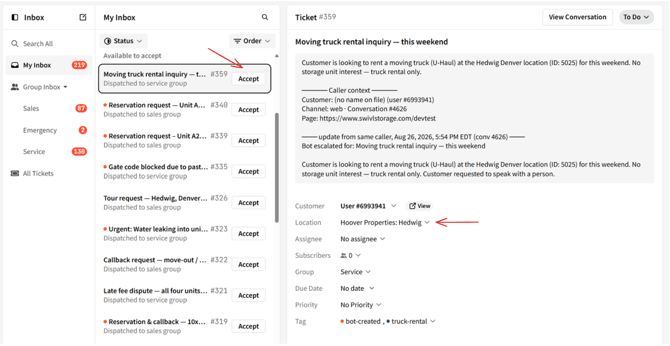
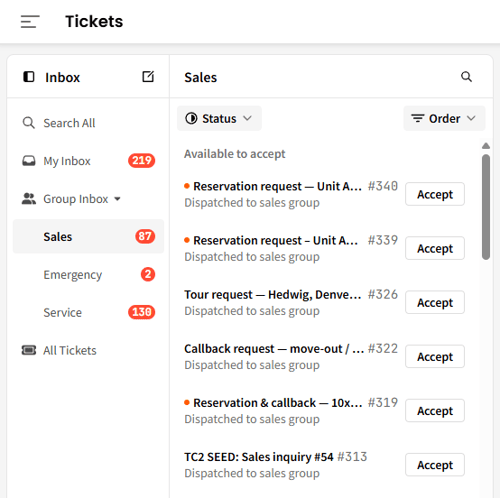
Every ticket belongs to a Location and a Group (Sales, Service, Emergency, or a custom group your account has set up). New tickets start unassigned and sit in a shared Available to Accept queue until someone on the right team claims them.
Roles & Permissions
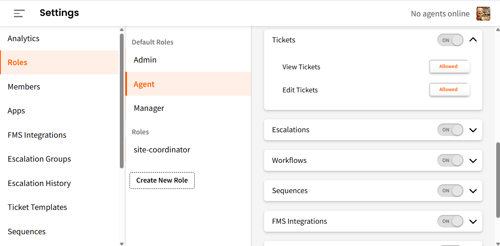
Who can view, create, claim, and resolve tickets, and who can configure Groups, is controlled per role under Settings → Roles. By default, every role (Admin, Agent, Manager) has full access to both. If you're missing access you expect to have, check with your account's Admin.
Claiming and Working a Ticket
-
Open My Inbox or a Group Inbox from the Ticketing sidebar.
-
Find an unclaimed ticket. You'll see an Accept button on any ticket in a group you belong to, at a location you have access to.
-
Click Accept. The ticket is assigned to you, its status moves to In Progress, and its task checklist unlocks.
ℹ️ Note: There's no automatic reminder for a ticket that sits unclaimed, so it's worth checking your queue regularly rather than waiting for a nudge.
Notifications and Resolving a Ticket
You'll get notified when:
-
An unassigned ticket lands in a Group you belong to
-
A ticket is assigned specifically to you
-
A note is added to a ticket you're subscribed to
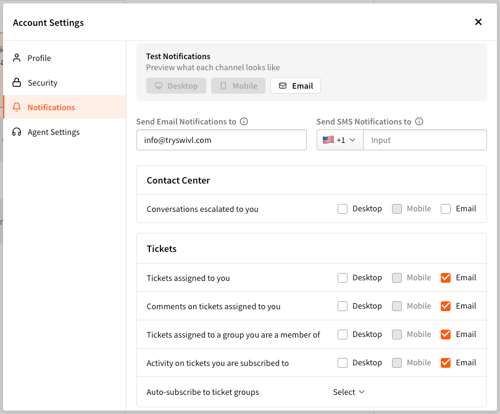
Email notifications are on by default. You can turn on push and SMS notifications individually in your notification preferences.
The fastest way to resolve a ticket is straight from the email notification: click the resolve link and it's done, no login required. You can also open the ticket in swivlStudio if you'd rather see the full picture first.
To manage your notifications, click your profile avatar in the top right to open your Account Settings → Notifications.
ℹ️ Note: Resolving a ticket doesn't notify the customer automatically. If they need to know it's done, send them a note separately. Any resolved ticket can be reopened later, the same way any other status change works.
Filtering and Searching Tickets
Use the Status, Order (Date Created or Last Updated, oldest or newest first), and Priority filters in My Inbox or a Group Inbox to work through your queue in whatever order makes sense, for example, oldest unassigned tickets first.
To find something specific, or search across every location you have access to, use Search All. Type a keyword (ticket title, customer, location, assignee, or ticket number), then narrow with Status, Priority, Assignee, Group, or Location.
.png?width=335&height=246&name=image%20(23).png)
.png?width=309&height=248&name=image%20(22).png)
💡 Tip: Completed and Cancelled tickets are hidden unless you search by keyword or explicitly include those statuses in your Status filter. Hunting for an old ticket goes faster with a keyword search than with filters alone.
Ticket Templates
If your team handles the same kind of request often, a lease renewal or a move-out walkthrough, for example, an Admin or Manager can build a Template under Settings → Ticket Templates.
A template can pre-fill the title, description, status, priority, tags, a default customer, and a task checklist, so nobody has to retype the same thing every time. One template can be set as the default and will auto-fill on every new ticket.
.png?width=500&height=298&name=image%20(24).png)
.png?width=500&height=538&name=image%20(25).png)
Troubleshooting
I don't see Ticketing at all.
Ticketing needs to be turned on for your account. Reach out to your swivl contact to get it enabled.
I can't assign a ticket to someone, I don't see them in the list.
The assignee list only shows people with access to that ticket's location. If someone's missing, they likely need location access added to their role.
A ticket's been sitting unclaimed, and nobody got reminded.
That's expected today. There's no automatic re-notification for an unclaimed ticket, just the original one sent when it was created or assigned.
I subscribed to a ticket but wasn't notified when it was resolved.
Subscribing only notifies you about new notes. Status changes and reassignments don't trigger a notification, so if you need to know a ticket closed, that has to be communicated separately.
I can't find a ticket from last month.
If you're filtering by Location, Assignee, or Group with no keyword and no Status selected, Completed and Cancelled tickets stay hidden. Add a keyword or select those statuses to bring them back.
Frequently Asked Questions
Can I delete a ticket?
No, there's no delete option. Setting its status to Cancelled removes it from your active queue while keeping the record intact.
Can a completed ticket be reopened?
Yes, any time, by anyone with edit access. It's the same as any other status change, no separate approval step.
Will swivl ever create duplicate tickets for the same issue?
Rarely. If a user follows up while their ticket is still open, swivl checks whether it's likely the same issue and adds to the existing ticket instead of opening a new one. If it isn't confident, it opens a new ticket rather than risk merging two different issues together.
Can I attach a file when creating a ticket?
Not from the ticket creation screen today.
Does resolving a ticket notify the customer?
No. It's an internal status change only, so let the customer know separately if that's needed.
📬 Need help? If you run into anything Ticketing-related that this article didn't cover, reach out to our team, and we're happy to help you get it sorted: support@tryswivl.com