![Full Color.png]](https://learn.tryswivl.com/hs-fs/hubfs/Full%20Color.png?height=50&name=Full%20Color.png)
|
Feature |
What's New |
|---|---|
|
My Escalations panel |
A dedicated spot in the Contact Center for the escalations assigned to you, separate from the general queue. |
|
Push notifications |
Turn these on so you get a real-time alert the moment a new escalation comes in. |
|
Smarter routing |
Escalations are now distributed across routing groups automatically, instead of manual pickup. |
|
New Escalation reports |
Total Escalations, Live Agent Performance, and Coverage & Outcomes give you a clearer view of how escalations are handled. |
The New Experience
My Escalations Panel
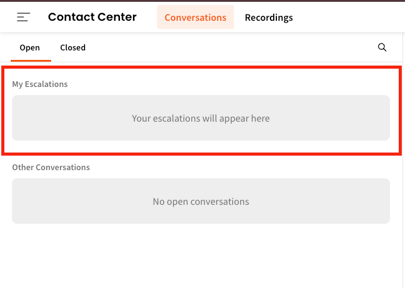
Escalations assigned to you now show up in their own My Escalations panel inside the Contact Center, instead of being mixed in with everyone else's. If a conversation has been routed to you, this is the first place to look.
Escalation Settings
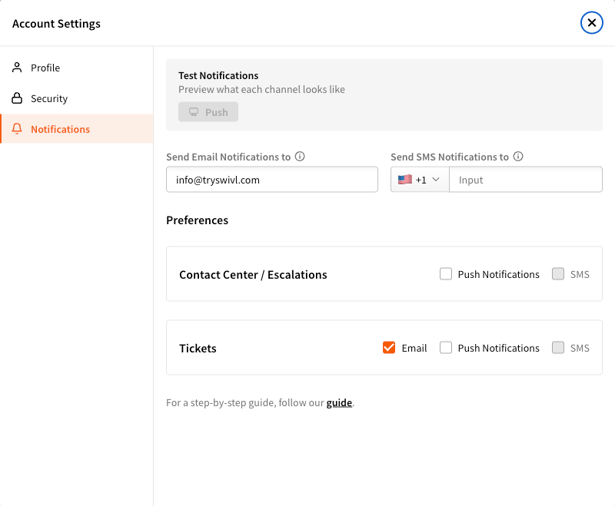
You can customize how you'd like to receive your escalation requests. You will receive a hooting sound for every escalation, but you can also receive push notification and SMS notifications.
New Escalation Reports
Three new reports give you visibility into how escalations are performing:
- Total Escalations: overall escalation volume across your account.
- Live Agent Performance: how quickly and effectively agents are responding.
- Coverage & Outcomes: how well escalations were staffed, and how they were resolved.
Voice Escalations Now Route Directly Into swivl
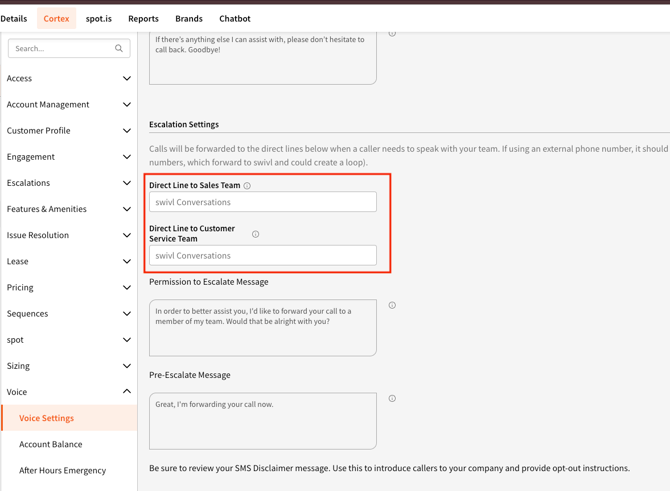
Now, by selecting swivl Conversations within the Voice section of Cortex, those calls flow seamlessly through swivl.
Here's how it works: when an escalation is triggered, the call appears as a New Voice Escalation on the Conversations page. Agents can see the caller's details, review context, and choose to Accept or Reject. Once accepted, the agent is connected with the tenant or prospect immediately, with no external forwarding required.
Setting Up Your Escalations
- Turn on push notifications in your Contact Center notification settings, so you get an alert the moment a new escalation comes in.
- Confirm your escalation details with your admin.
- Keep your Contact Center tab open. It doesn't need to be in focus, but it needs to be open for alerts and the hoot alert to fire.
- For voice escalations, set the Escalate destination in Cortex's Voice section to swivl Conversations instead of an external phone number.
- If you choose to have voice escalations forwarded to an external phone number, confirm your configuration details with your admin.
|
💡 Tip: If you're missing escalations, push notifications and escalation group settings are the two most common culprits. Check those first. |
How It Works:
-
When an escalation is triggered, the call appears as a New Voice Escalation in the Conversations page.
-
Agents can see the caller's details, review context, and decide to Accept or Reject.
-
Once accepted, the agent is immediately connected with the tenant or prospect — no external forwarding required.
📬 Need help?: Still running into issues with Conversations or Escalations? Reach out to our team at support@tryswivl.com and we'll help you sort it out.